How to Trade Fast on Groww: Quick Order Placement Tips
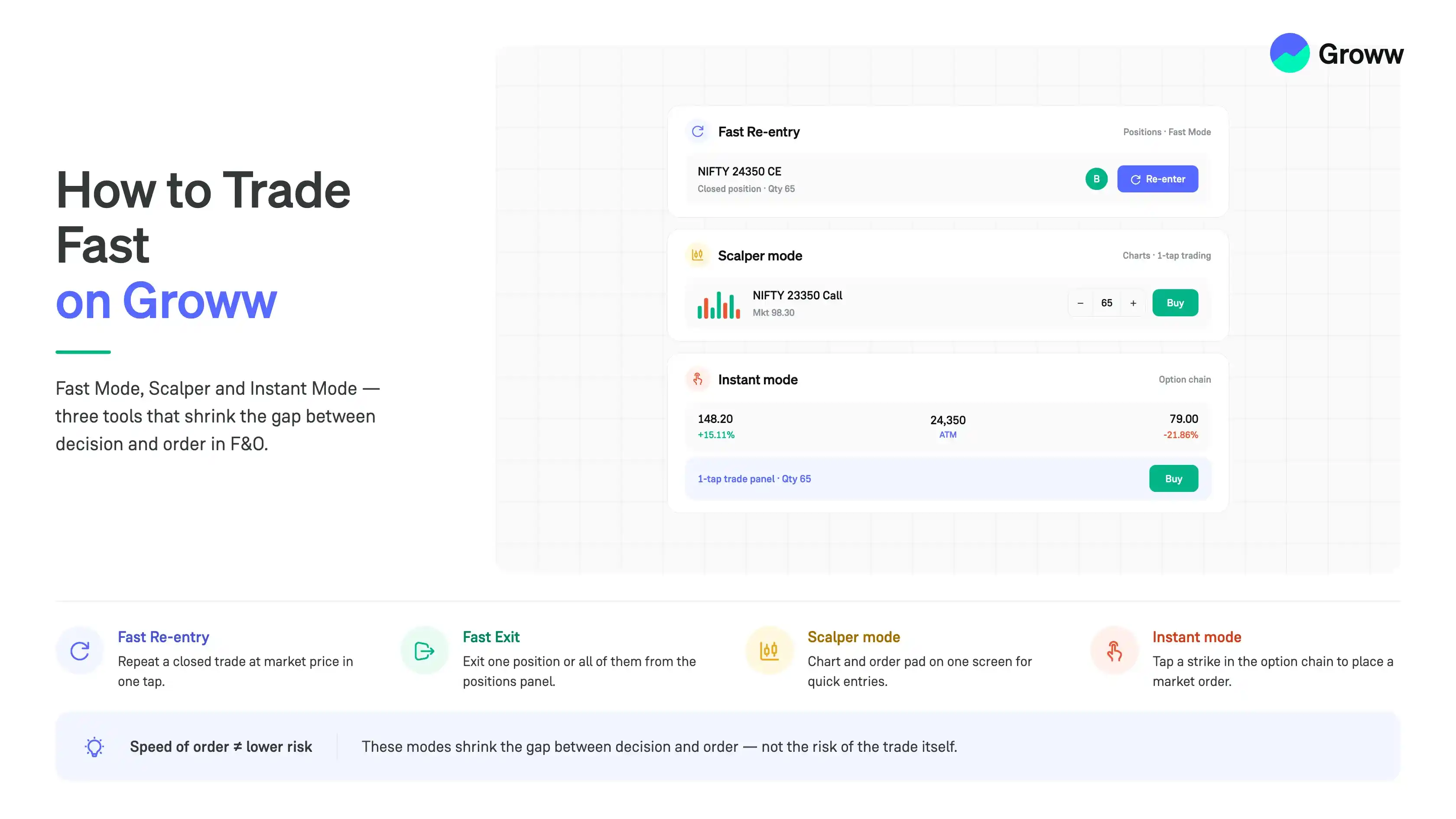


In fast-moving F&O markets, especially while trading NIFTY options, speed can matter. A trader may need to exit a position quickly, re-enter the same order, or place an order directly from the option chain.
Groww has features built for exactly these moments. This guide splits them into three parts:
For simplicity, the examples in this guide use NIFTY Call Options.
Where These Features Sit
All of these features are inside the F&O section of the app.
- Step 1: Open the Groww app and go to the F&O tab
- Step 2: Click on “NIFTY 50” to open the instrument page
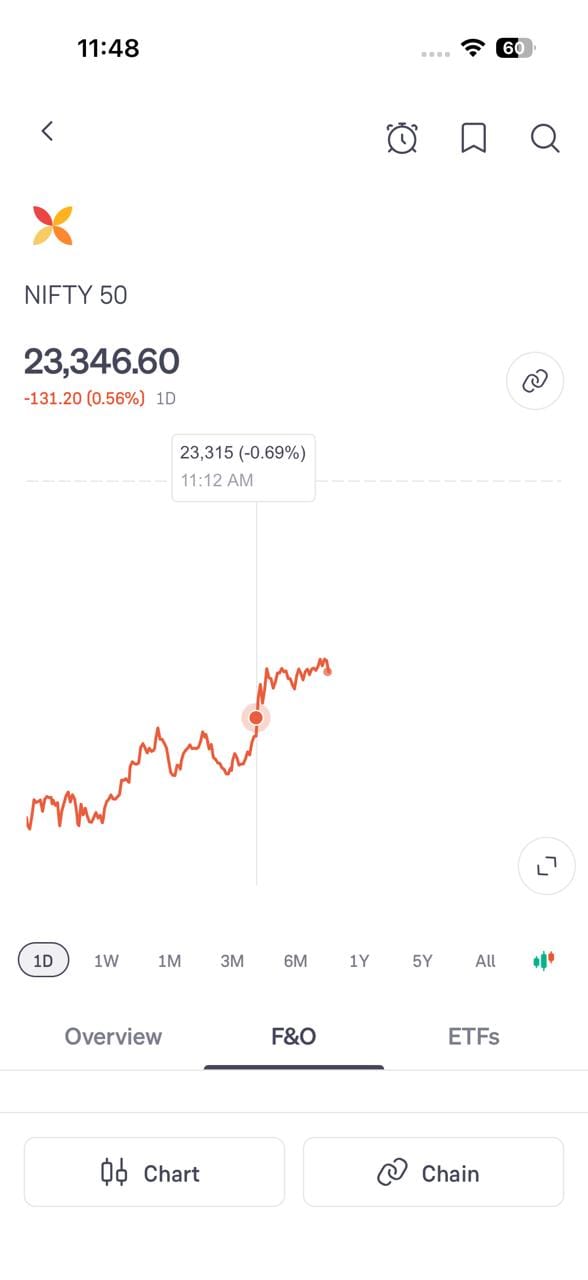
- Step 3: The F&O tab of this page has “Chart” and “Chain” buttons at the bottom, which take you to the chart and the option chain
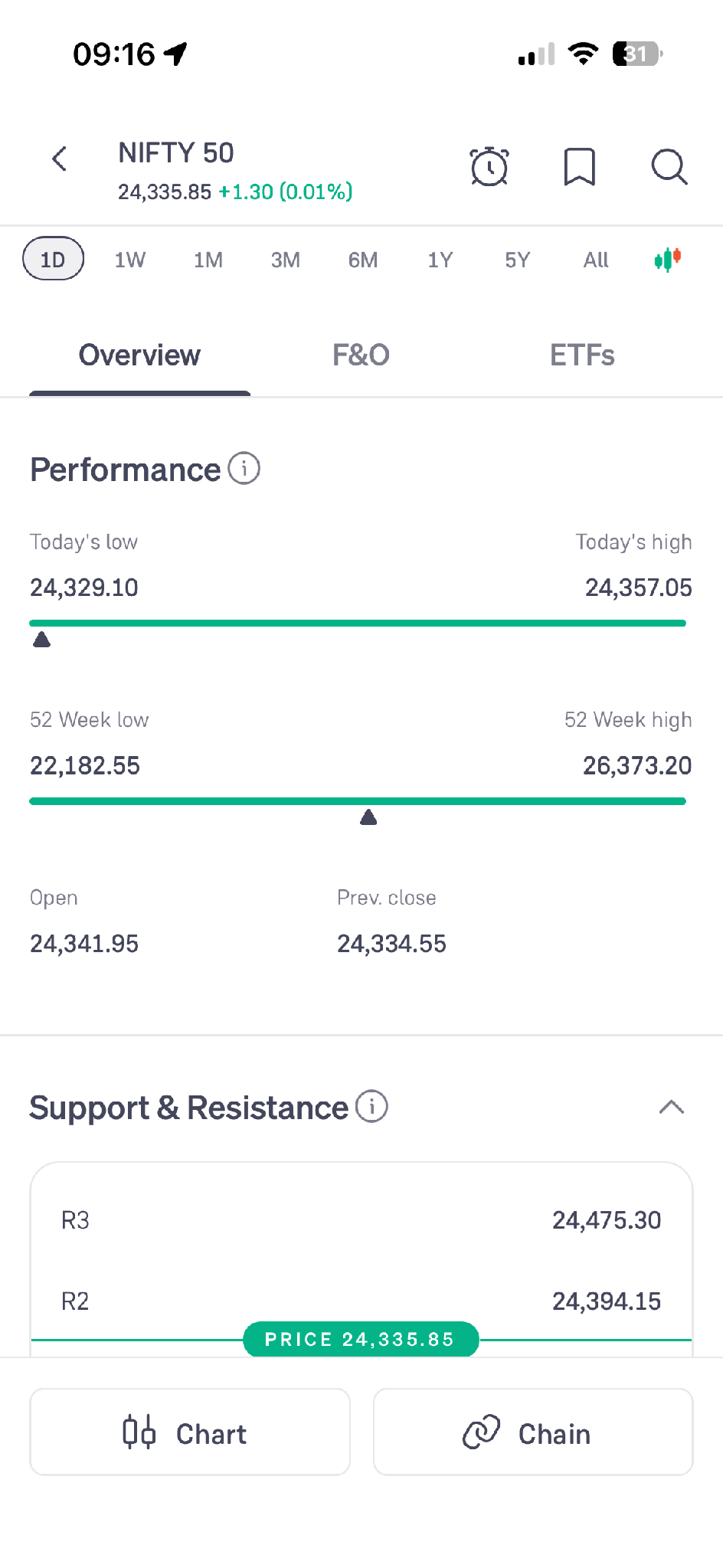
The Overview tab on the same page shows the day's levels.
- Step 3: The Overview tab shows today's low and high, the 52-week range, the open and the previous close
- Step 4: The Support & Resistance panel plots levels such as R2 and R3 against the current price
Part 1: Positions - Fast Mode
Fast Mode helps you act on open positions with a single tap, without opening a full order screen. It covers two actions: placing the same order again, and exiting quickly.
Fast Re-entry
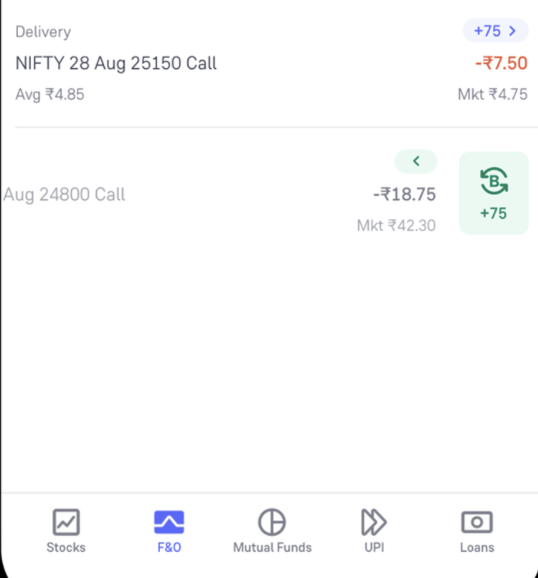
Want to quickly take the same trade again? Instead of building the order from scratch, you can re-enter it directly from your closed positions.
- Open the Positions tab under F&O
- Find your closed position and tap the “B” (Buy) or “S” (Sell) icon in the top-right corner
- A drawer opens showing the trade direction and quantity. You can tap the “Fast Re-entry” icon to place the order instantly
- The order is placed for the same contract, quantity and direction at the market price
Fast Exit
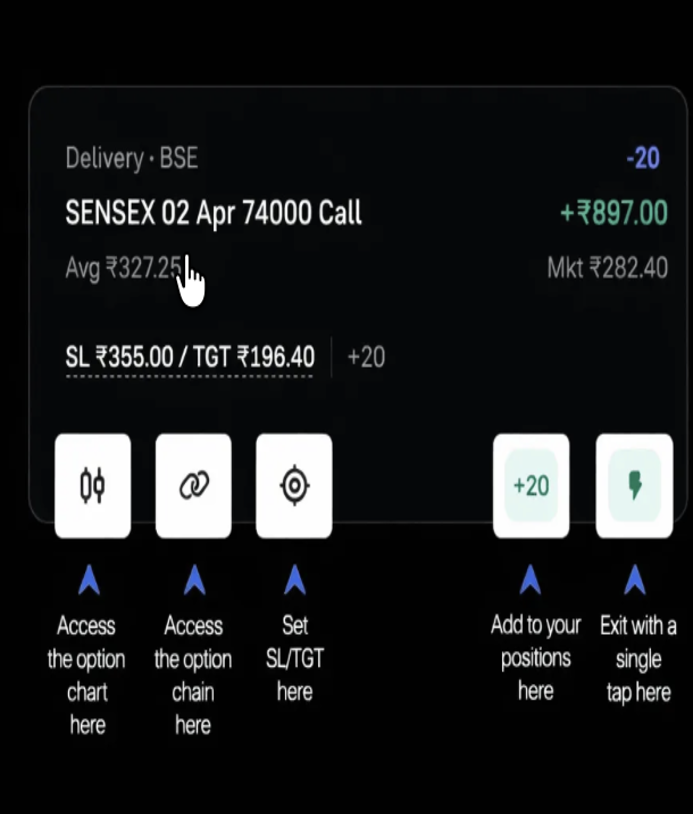
When you want out of a position quickly, Fast Exit places the exit order directly from the positions panel.
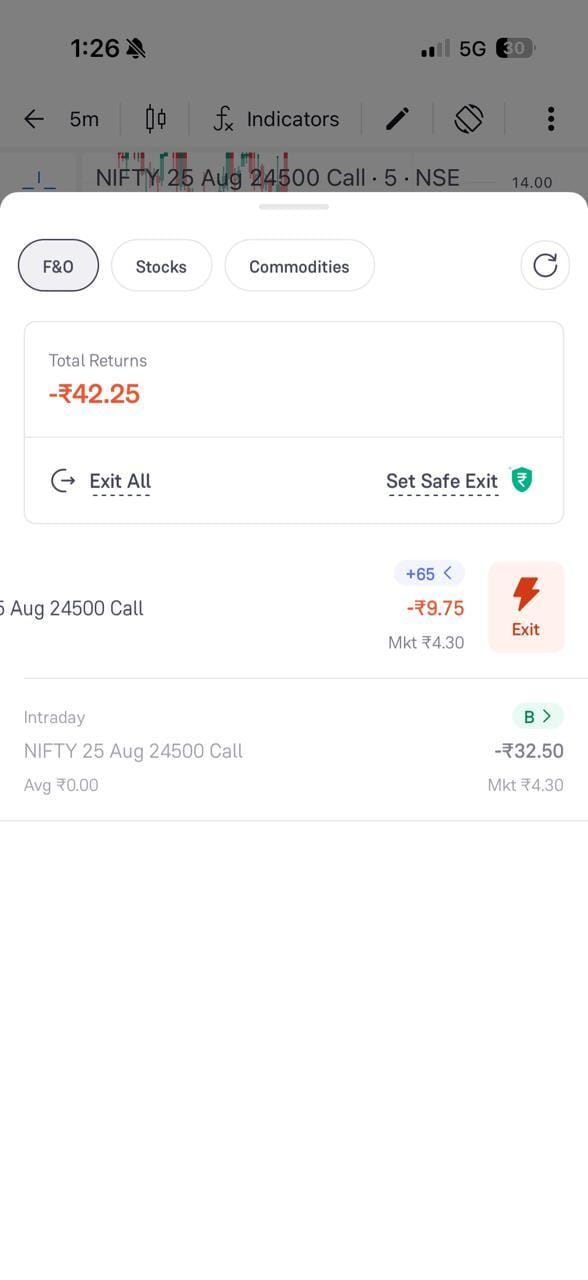
- Open the positions panel. On the chart screen, it can be opened from the bottom of the screen
- Select the F&O tab in the panel to see your F&O positions
- Click the “Exit” button next to the position you want to close
- To close everything together, use “Exit All”
- “Set Safe Exit” lets you set a profit or a loss level at which the positions are exited for you
Part 2: Charts - Scalping
Scalping involves taking small positions and holding them for a short time. Both chart reading and order placement need to be quick, so keep the chart and order screen as close together as possible.
- Open the chart using the “Chart” button on the F&O tab, or the expand icon below the price chart
- Select the timeframe from the top of the chart. 5m is commonly used for intraday trading, and 10m, 15m and other timeframes are available in the same menu
- Use the “fx” menu to add indicators to the chart
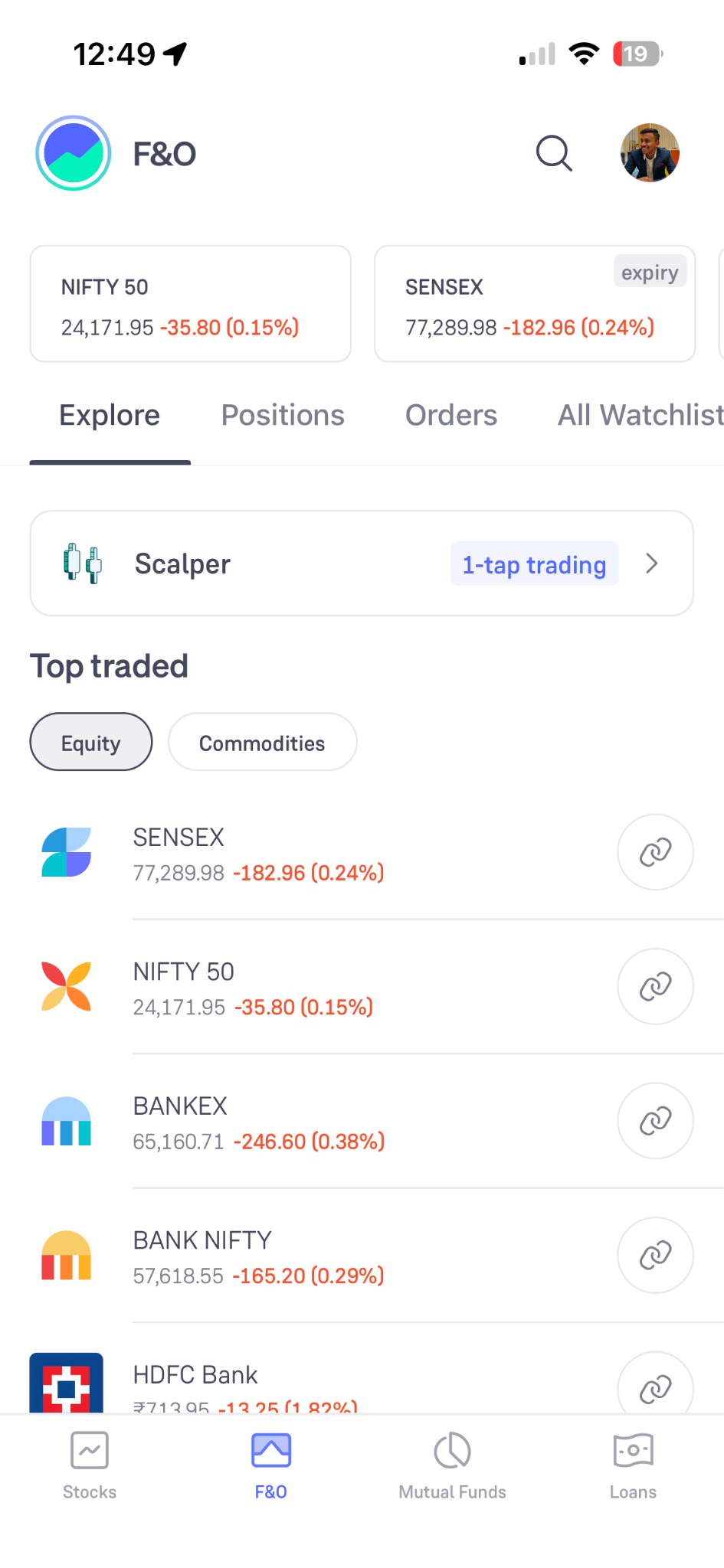
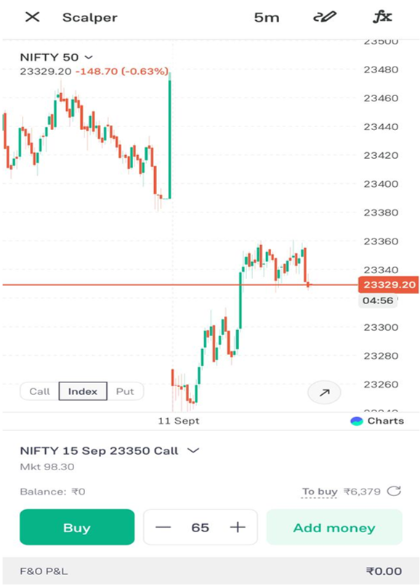
Groww also has a separate Scalper mode built for one-tap trading.
- Go to the F&O tab of the app
- Click the “Scalper” card marked “1-tap trading” on the Explore tab
- The scalper screen shows the chart along with a Call, Index and Put quick switch, and an order pad below the chart
- You can follow the chart and place the order from the same screen instead of moving between the two
Here is an example of the Scalper mode as well:
Part 3: Option Chain - Instant Mode
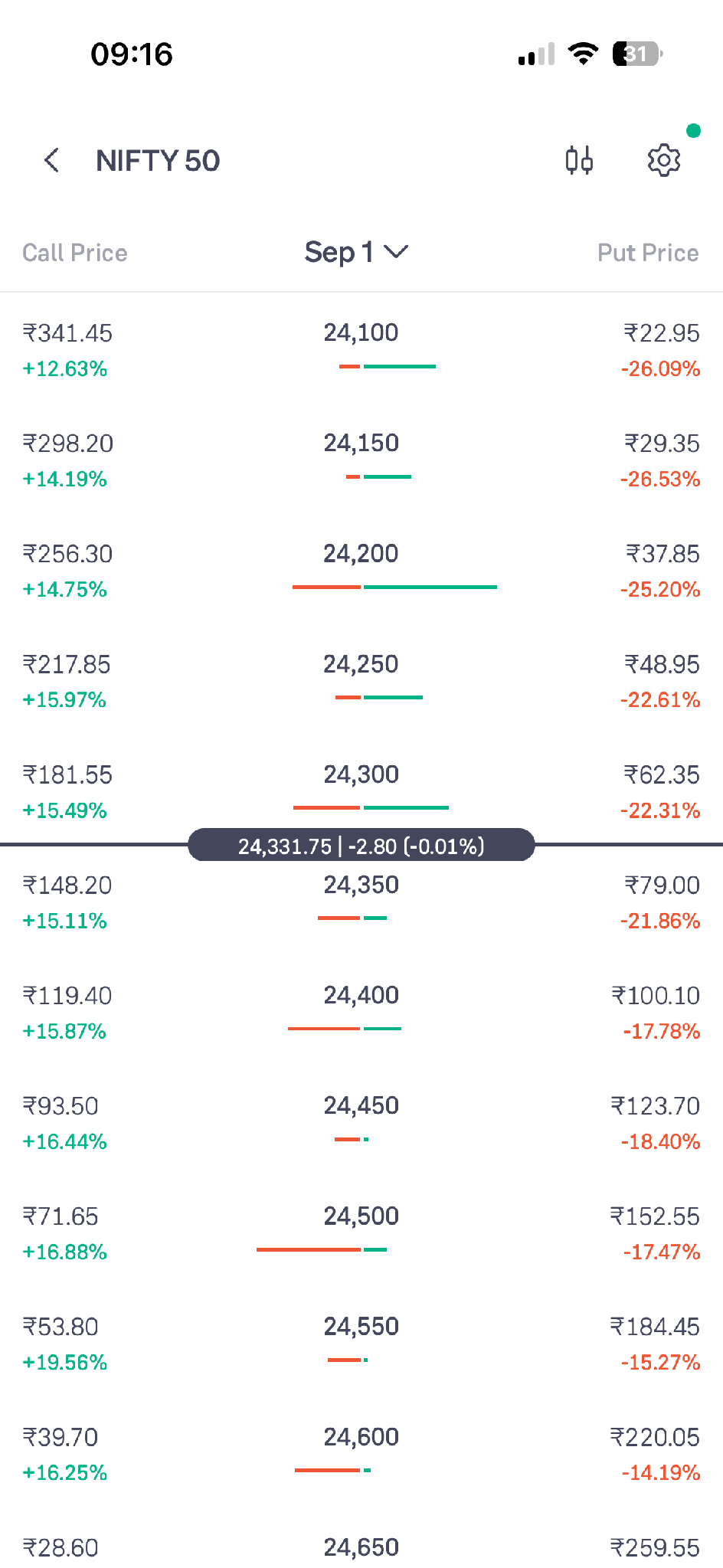
Instant mode turns the option chain itself into an order screen, so you can trade a strike without leaving the chain.
- Open the option chain using the “Chain” button on the F&O tab
- Select the expiry from the top of the chain. Call prices are shown on the left, Put prices on the right, and the chain opens near the at-the-money strike
- Click the settings icon and select “Instant mode” under CHAIN MODE for 1-tap market orders, then click “Done”
- Click the strike you want to trade. A 1-tap trade panel opens at the bottom with the quantity and the Buy button
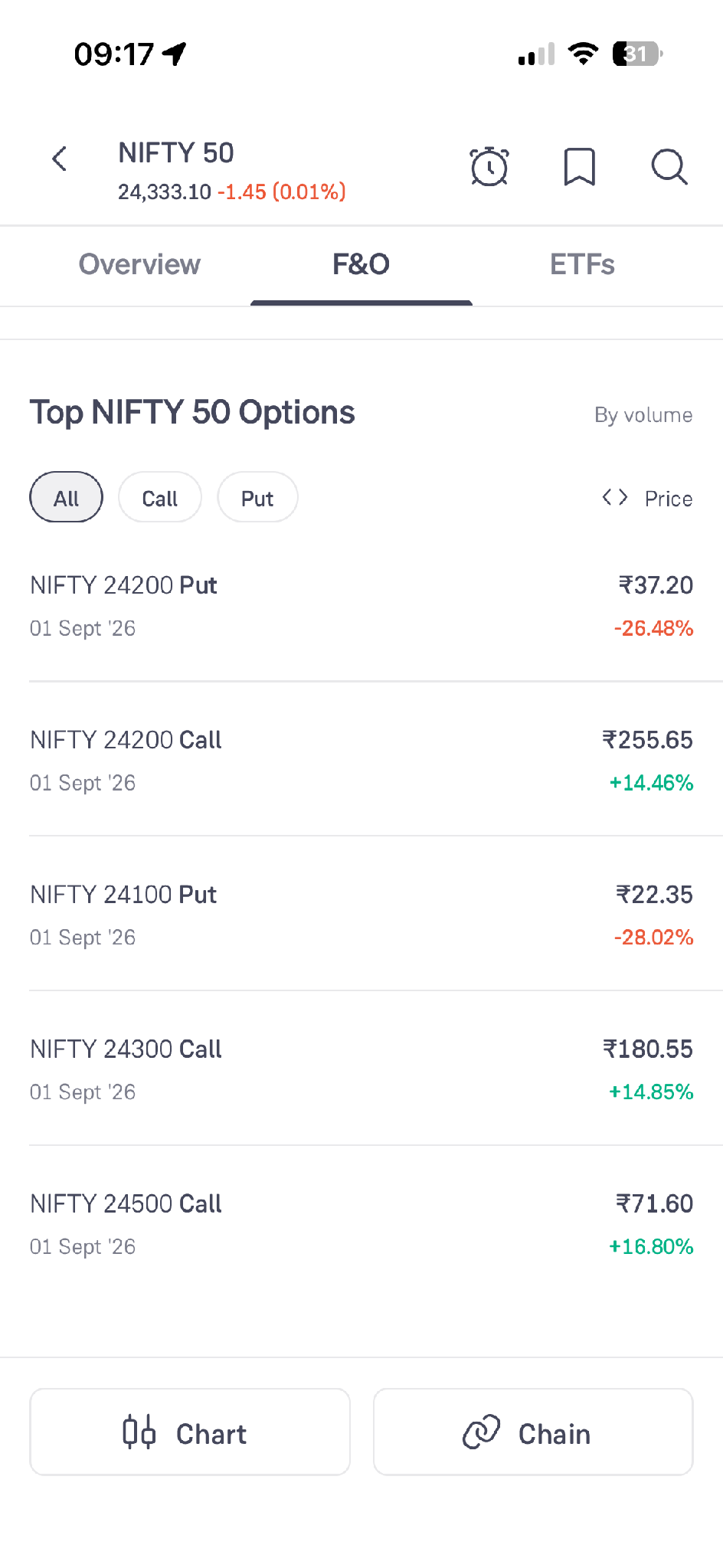
If you already know the type of contract you want but not the strike, the Top NIFTY 50 Options list can be quicker than scrolling through the chain.
- Open the F&O tab of the NIFTY 50 page and scroll to “Top NIFTY 50 Options”
- The list is ranked by volume and shows the strike, the type, the expiry, the LTP and the percentage change
- Use the All, Call and Put filters to narrow the list
Review Your Fast Trades
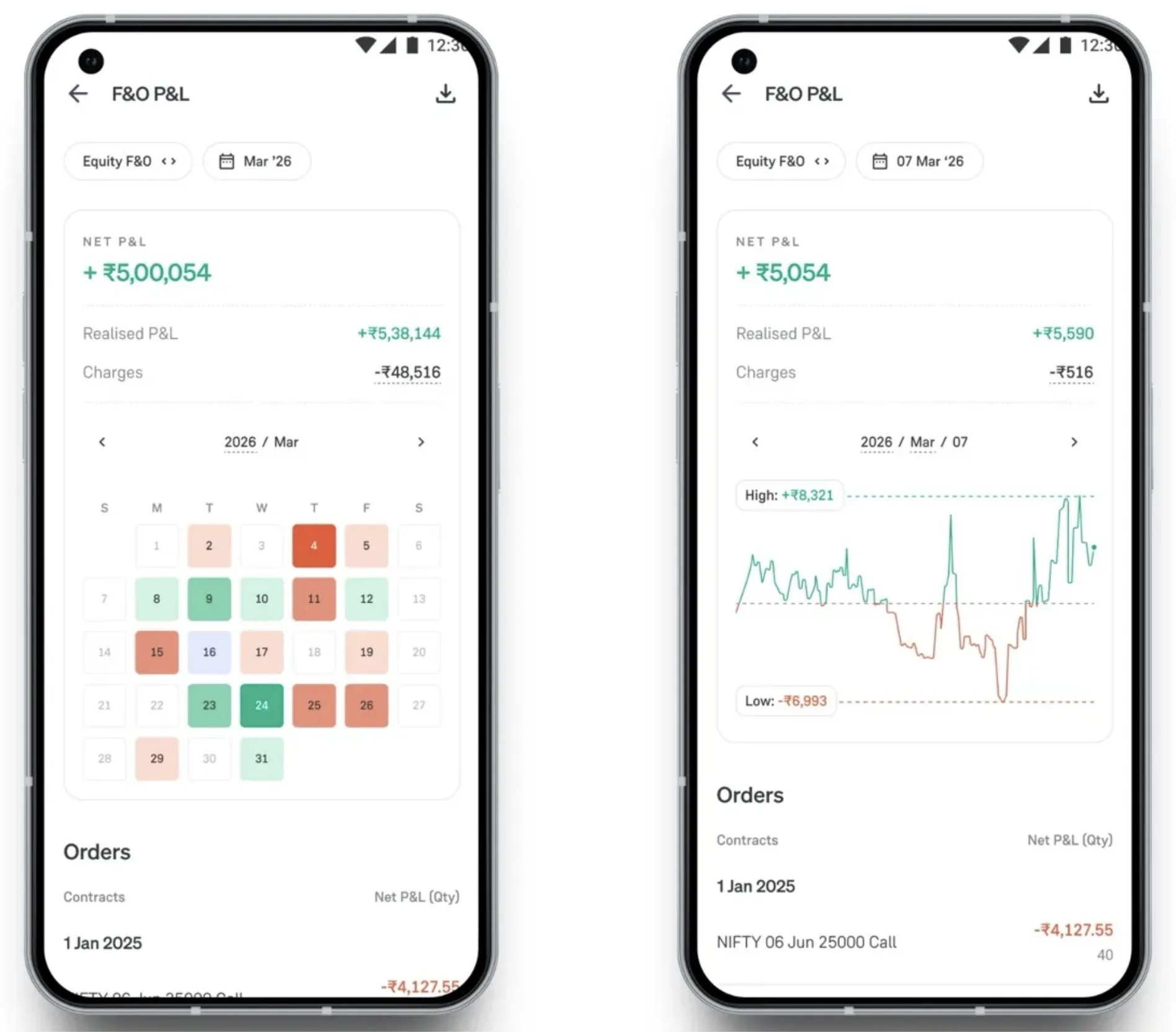
The P&L report shows how the fast trades worked out, along with the charges.
- Go to your profile and open “Reports”, then the P&L report section
- The F&O P&L screen shows the Net P&L, the Realised P&L and the charges for the selected period
- The calendar view marks profitable days in green and loss-making days in red
- Selecting a single day shows the P&L curve for that day with its high and low, along with the orders placed
Conclusion
Fast Mode, Scalper mode and Instant mode all reduce the gap between a decision and an order. They do not reduce the risk of the trade itself. Options involve significant risk, and no feature can guarantee profits.