Position Filtering: Organise, Filter, and Track Your F&O Trades Effortlessly
Hello Traders,
When you are actively trading in Futures & Options (F&O), speed, clarity, and focus plays an important role. During high market volatility, juggling multiple open positions across stock options, index contracts, intraday trades, and multi-leg strategies on a single long screen can be difficult.
To make tracking your trades easier and cleaner, we are excited to introduce Position Filtering in F&O on Groww.
Now, you can quickly filter your positions by stock or index, view only open trades, or separate intraday orders from delivery in just a couple of taps.
What is Position Filtering in F&O?
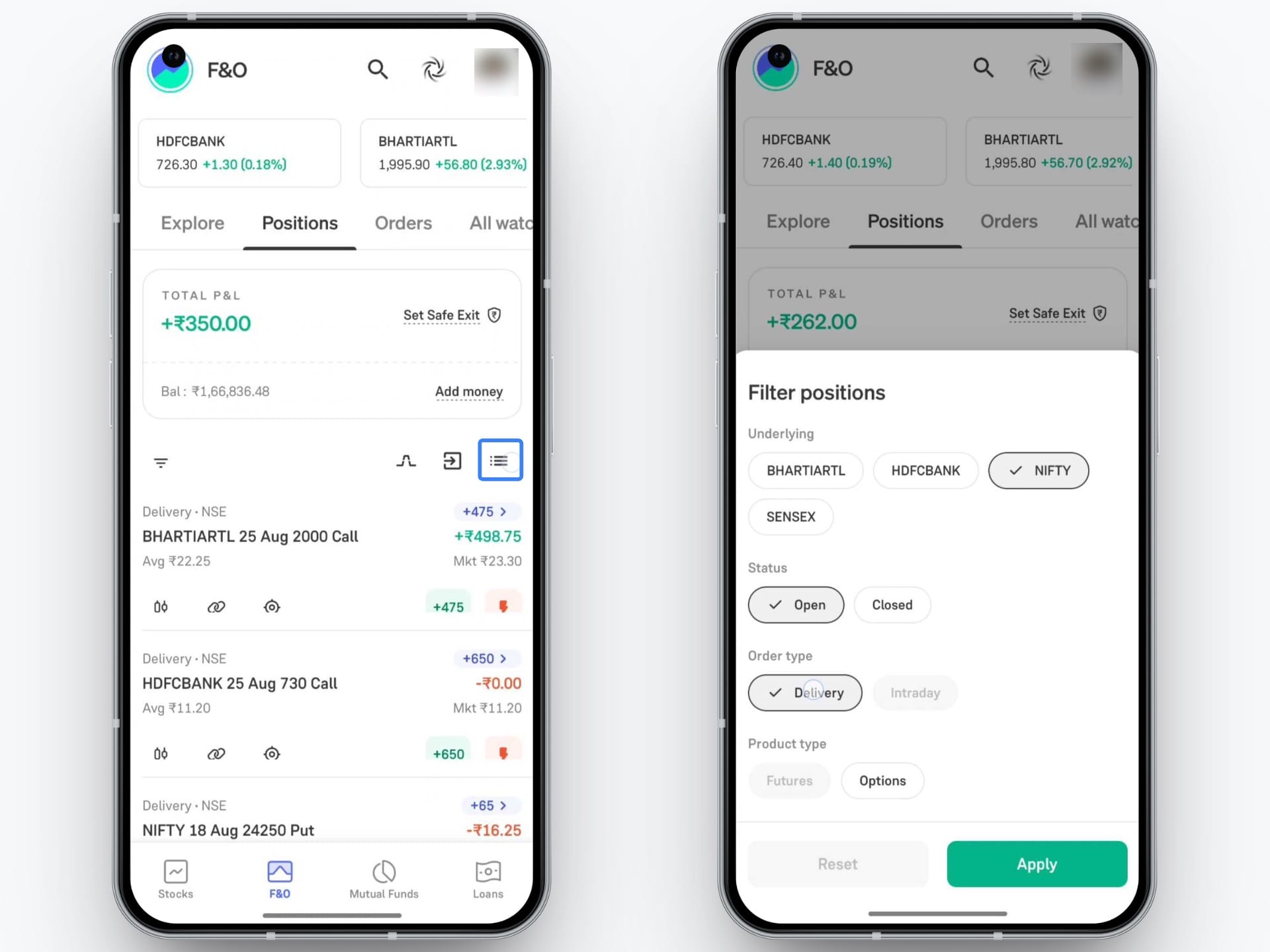
Position Filtering is a tool integrated directly into your Positions tab on Groww. It allows you to refine, filter, and view your active and past derivative contracts based on criteria like underlying assets, position status, order type, and product type.
Key Filter Categories You Can Apply
With Position Filtering, you get multi-layered control over how your trades are displayed:
1. Underlying (Asset / Index):
- Filter positions specifically by underlying contracts such as NIFTY, SENSEX, HDFCBANK, BHARTIARTL, and more.
- Use case: If you have multiple positions in NIFTY, such as different call and put contracts, filtering by NIFTY lets you view and track those positions together.
2. Status:
- Toggle easily between Open and Closed positions.
- Use case: Keep your screen clean by displaying only active trades that require active tracking or stop-loss management.
3. Order Type:
- Filter by Delivery or Intraday.
- Use case: Separate overnight positional trades from high-frequency intraday momentum trades.
4. Product Type:
- Categorise by Futures or Options.
- Use case: If you are managing several Futures and Options positions at the same time, filter by product type to quickly review all your Futures positions or all your Options positions separately.
How to Use Position Filtering on Groww ?
Step 1: Go to the Positions Tab
- Open the Groww app and navigate to the F&O tab from the bottom navigation bar.
- Tap on Positions at the top.
Step 2: Tap the Filter Icon
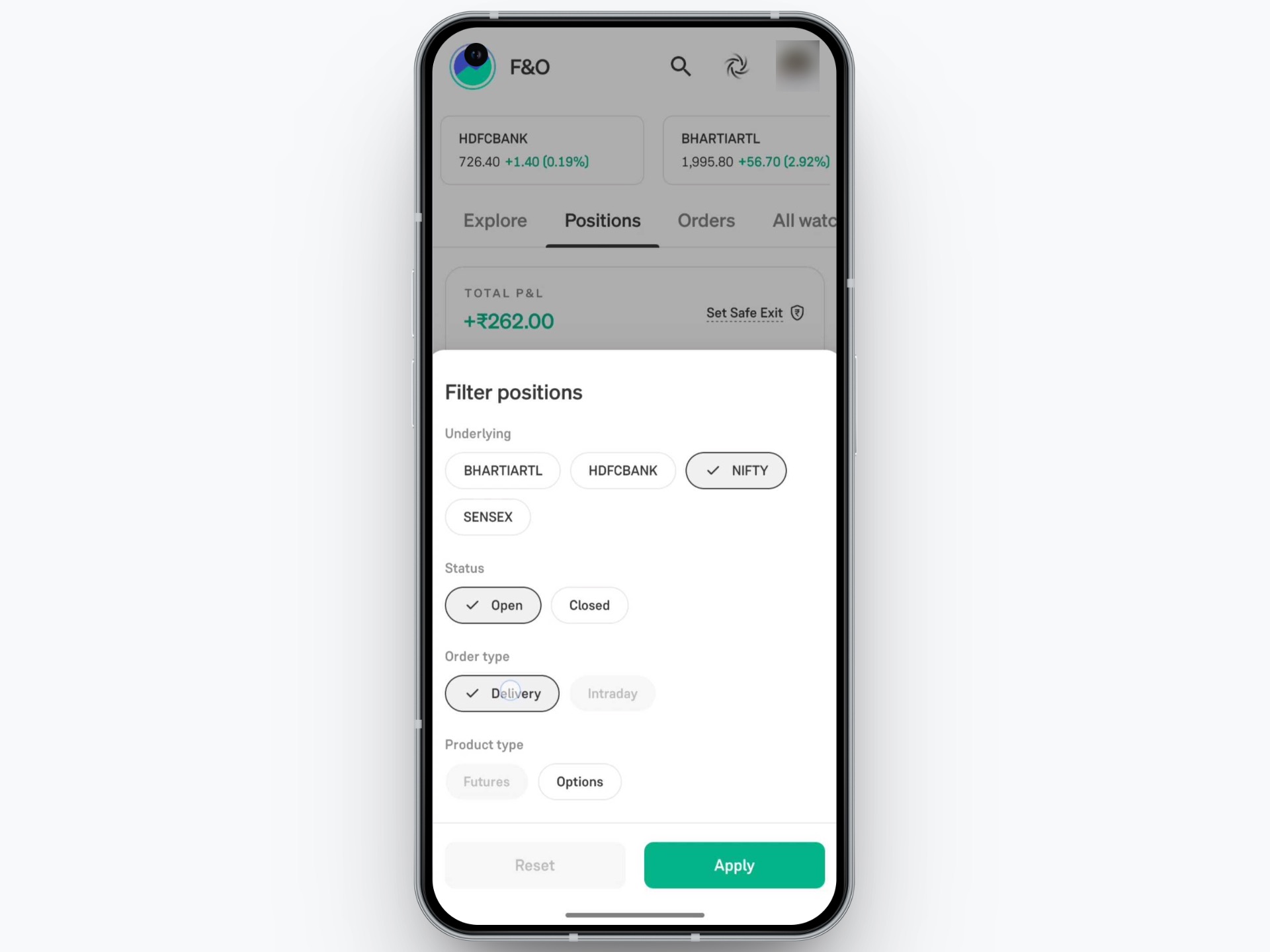
- On the Positions screen (just below your Total P&L summary), tap on the Filter icon () located on the left-hand side.
Please Note: The Filter icon is visible only when you have at least one open or closed position. If you have no positions, the filter option will not be displayed.
Step 3: Choose Your Filters
A "Filter positions" modal will pop up with customizable chips:
- Underlying: Select one or multiple stock/index symbols (e.g., BHARTIARTL, NIFTY).
- Status: Tap Open or Closed.
- Order type: Choose Delivery or Intraday.
- Product type: Choose Futures or Options.
Step 4: Tap Apply
- Tap the Apply button at the bottom right. Your screen will instantly refresh to show only the positions matching your chosen criteria.
- Need to clear your selection? Simply open the filter modal again and tap Reset.
Ready to Get Started?
The Position Filtering feature is now live for all Groww F&O traders.
Update your Groww app to the latest version, head over to the F&O Positions tab, and experience a cleaner, more focused trading view today.
Happy Trading!
- Team Groww
Other Updates